How to start
Create your portal, add your first student and start tracking progress for free. Follow the steps with Mainland Music School as an example.
Step 1
Create your account and portal address
Enter your school name, choose your portal address and create your account. Independent teachers can use their own name.
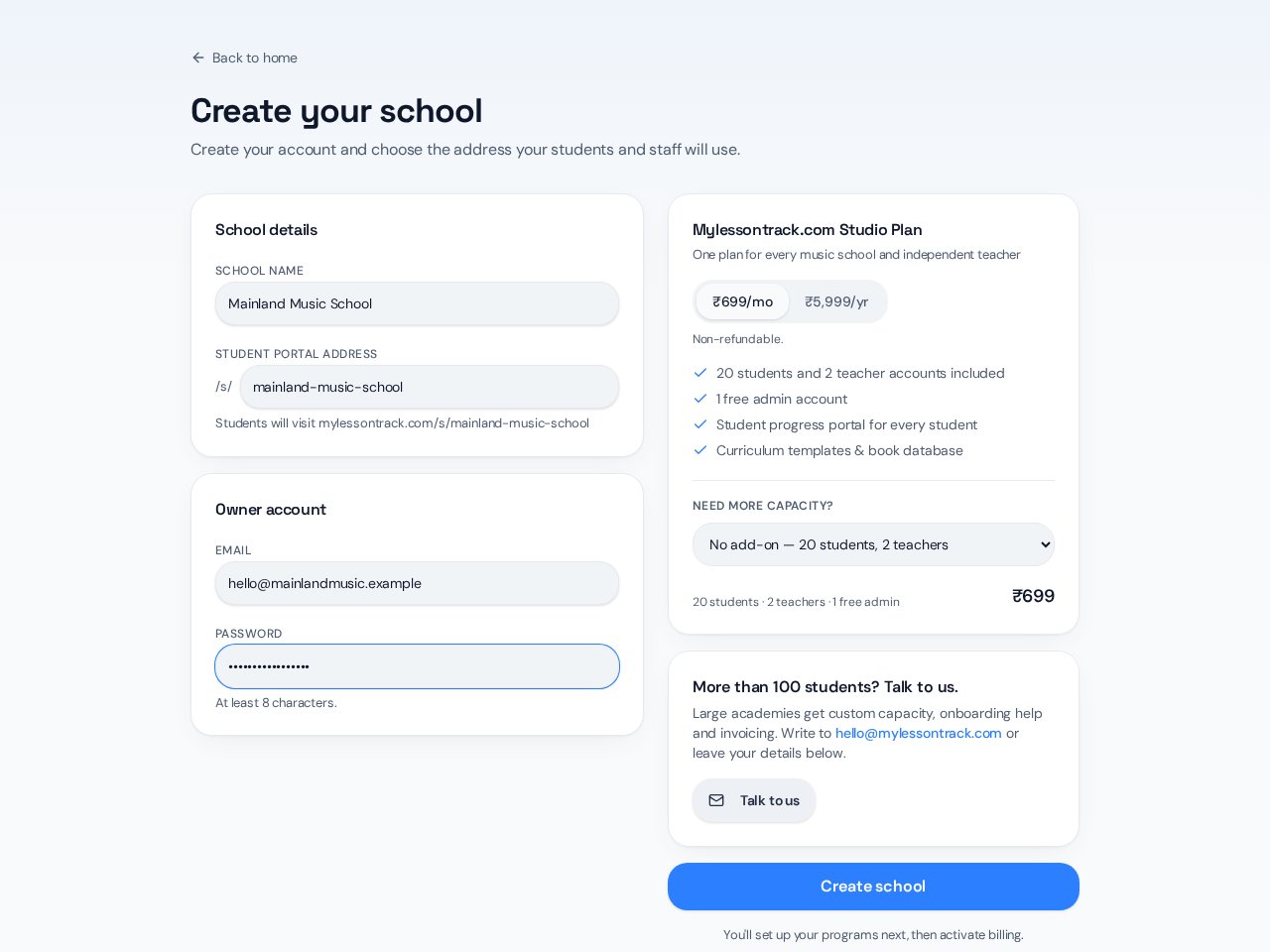
Your school name and chosen address on the signup form. Step 2
Start with 3 students for free
Start with 3 students and one teacher/admin account. No payment needed and no expiry date. Upgrade whenever you’re ready.
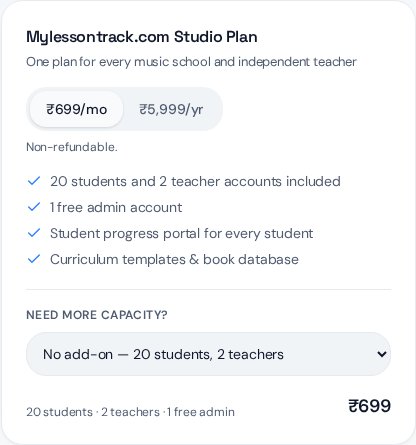
Studio capacity options shown for when you are ready to upgrade. Step 3
Set up the programs you teach
Choose the programs you teach, like Piano or Guitar. Use a ready-made curriculum or create your own, then edit it anytime.
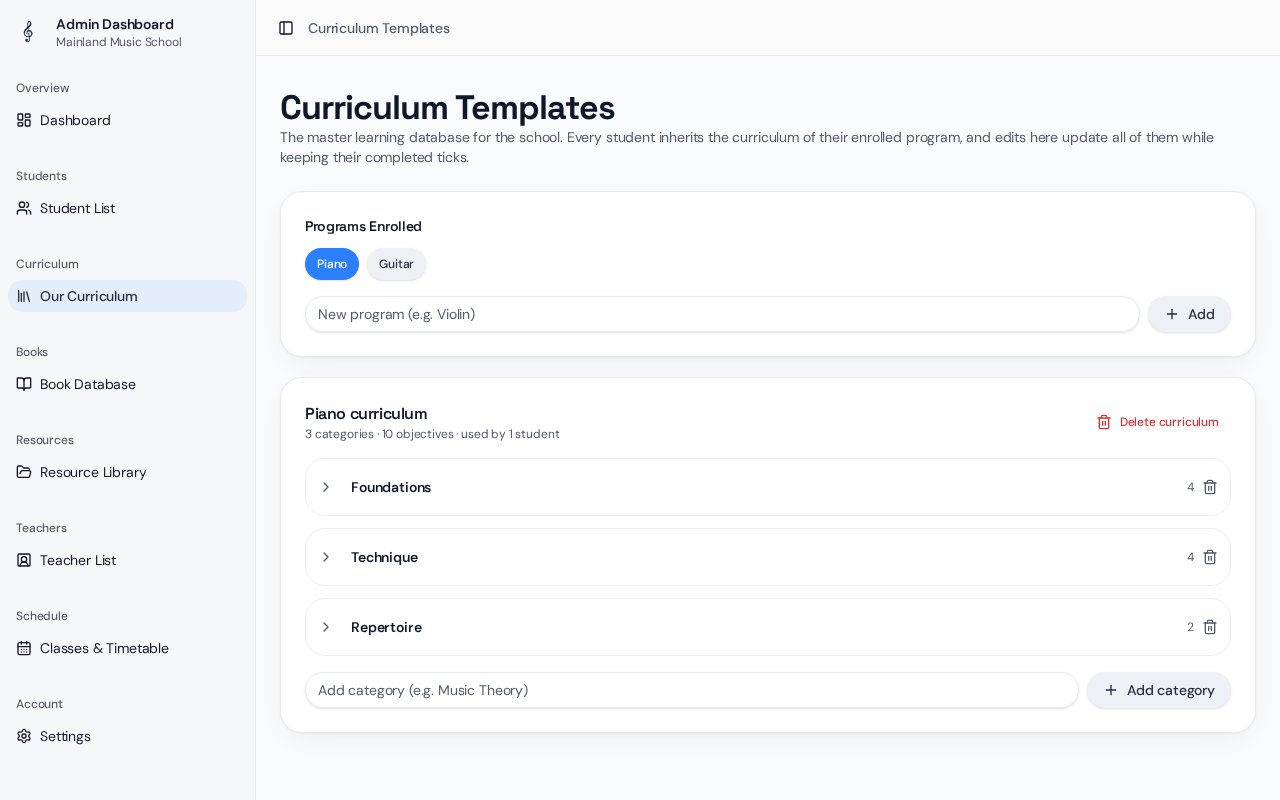
Edit your learning goals in Our Curriculum. Step 4
Start tracking progress, upgrade when you need more
Finish setup and add your first student. No payment needed. Upgrade to Studio in Billing when you need more capacity; your records stay with you.
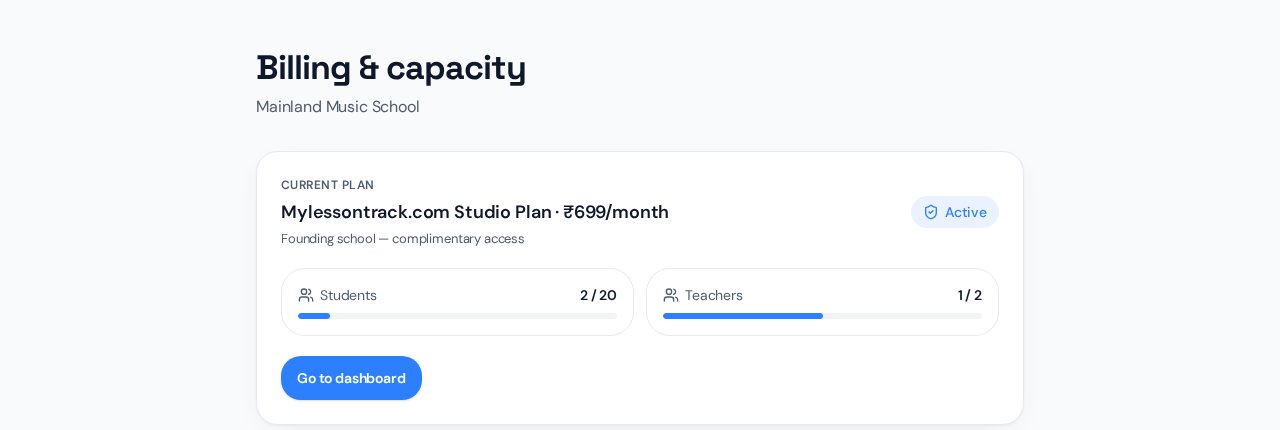
An active plan after payment, shown in Mainland Music School's Billing page. Step 5
Add your teachers and students
Add students, choose their program and set their class times. Give each student a username. With Studio, you can add teachers too.
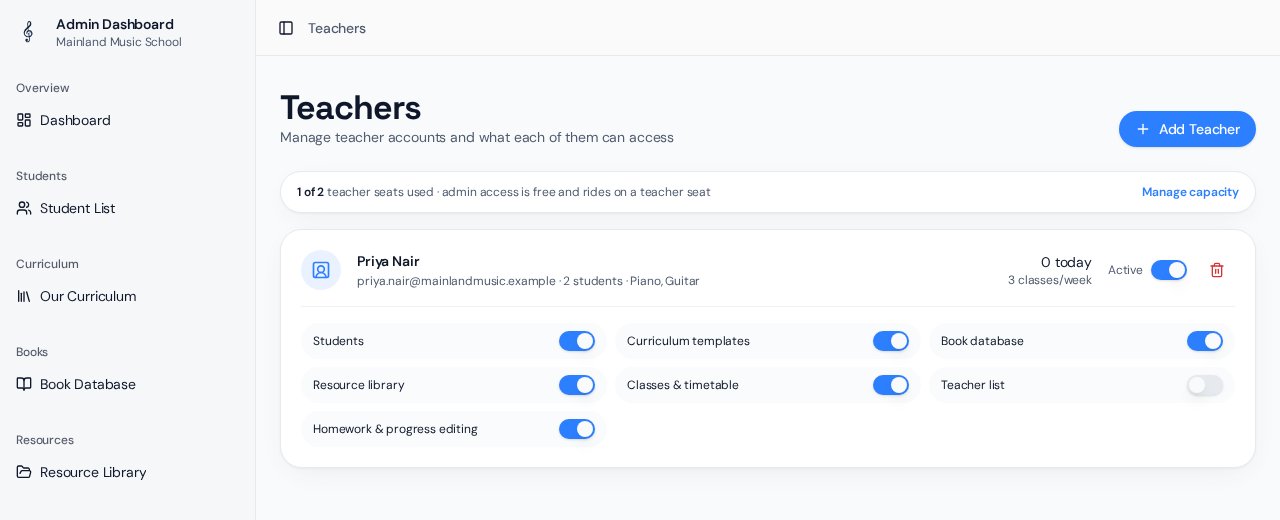
Teacher accounts are managed here. Student records are added separately in Students. Step 6
Assign books and record lesson progress
Assign books to each student. After lessons, update their page, tick off completed goals and add a short remark.
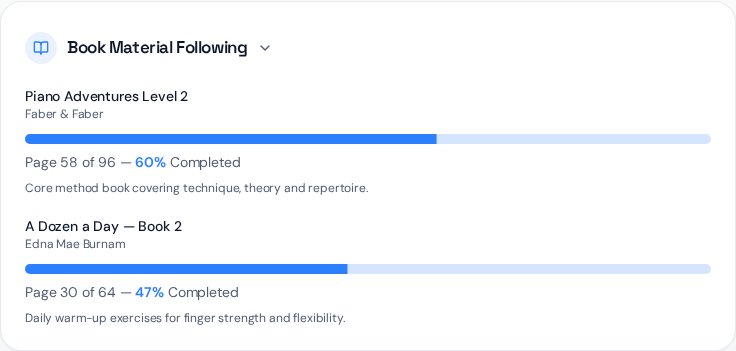
Assigned books show the student's current page and progress through each book. Step 7
Set homework and attach lesson materials
Set homework and mark it done after review. Add songs, recordings, sheet music or links. Materials linked to goals open when those goals are completed.
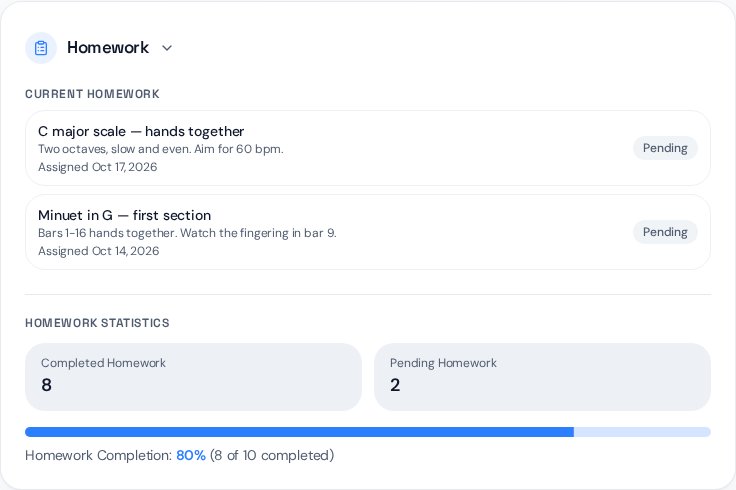
Example homework gives students a clear practice task between classes. Step 8
Share the portal and keep students up to date
Share your portal address and each student’s username. They can see their progress, homework and materials, but cannot make changes.
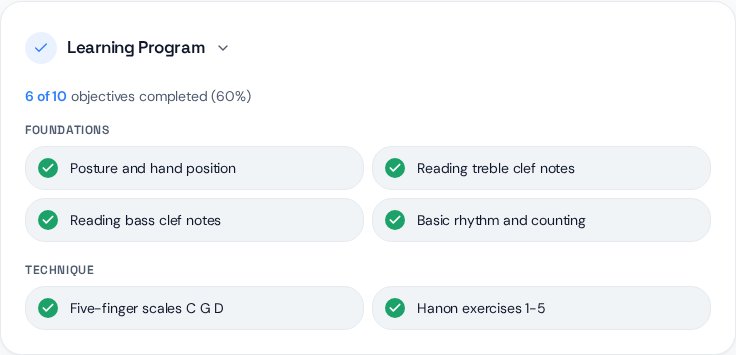
Students see their own learning progress and resources in a view-only portal.
See what you can do in each lesson
Take a closer look at homework, book tracking, schedules and shared lesson materials.
Check the Features